Learn how to create, manage, and commence a customer test drive in Dealer Drive, including selecting a vehicle, capturing driver information, completing compliance requirements, and starting the drive.
How to Start a Test Drive
Start a New Test Drive
Select the Vehicle
Search for and select the vehicle that will be used for the test drive.
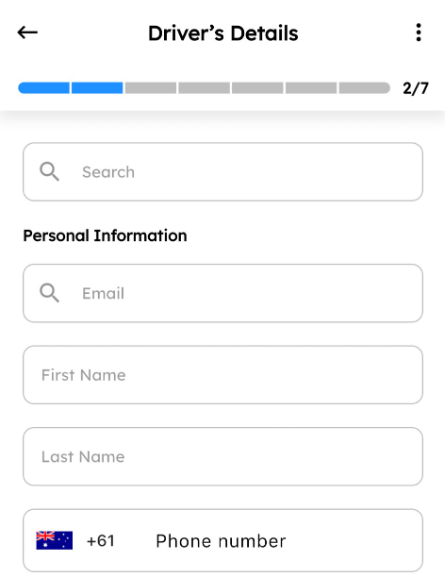
Enter Driver Details
Search for an existing customer or enter the customer's details manually to create a new profile.
Upload the customer's driver's license and select Next.
For returning customers, use the search function to locate their existing record instead of creating a new customer profile.
Schedule the Return Time
Confirm Vehicle Condition
Accept Privacy & Consent
Review the Terms & Conditions
Capture the Customer's Signature
Ask the customer to review the agreement and provide their signature.
Select Accept once the signature has been captured.
Review the Summary
Confirm Accompaniment Details
Select whether you will accompany the customer during the test drive.
Once confirmed, select Start Test Drive.
Managing an Active Test Drive
View Active Test Drives
Once the test drive has started, it will appear in your Recent Activity list found on your dashboard.
From here, you can:
- View test drive details
- Update the return date and time
- Review customer information
- Complete the vehicle return process
Need more support?
Our locally based Support Team are here to help with any updates or assistance.
Submit a request and they will get back to you as soon as possible.
Any information on this page is provided as a guide only. It is not professional or expert advice and is not a substitute for such advice. The content may not be appropriate, correct or sufficient for your circumstances and should not be relied on as the only reason you do or don’t do anything.